

Before sharing any family device, whether it’s an Apple iPad, a Windows laptop, or an Android phone, it’s crucial to review and adjust key privacy settings. This involves creating separate user profiles, restricting app permissions, disabling location tracking for sensitive apps, and ensuring strong passcodes are in place. These steps help prevent unauthorized access to personal data, browsing history, and sensitive applications, protecting individual privacy while enabling shared use among family members, crucial for remote workers managing home tech.
It’s a familiar scene: your teenager needs a laptop for a school project, your partner borrows your tablet for a quick video call, or a younger child wants to play a game on your smartphone. In homes across North America, Europe, and South America, shared family devices are a common fixture, especially with the rise of remote work. The convenience is undeniable, but it often comes with an overlooked risk: privacy.
Think about the digital footprint left on these devices—emails, browsing history, payment information, personal photos, even health data from fitness apps. When multiple people access the same device, without proper safeguards, everyone’s personal information becomes vulnerable. It’s not just about protecting your own data; it’s about respecting and protecting the privacy of every family member using that device.
For most readers, the solution isn’t to stop sharing. It’s to be deliberate about how devices are set up and used. That means digging into the operating system and app settings, understanding what data is being collected, and controlling who can access it. This guide will walk you through the essential privacy settings to check before sharing family devices, ensuring a safer digital environment for everyone.
Understanding the Privacy Implications of Shared Tech
When a single device serves multiple masters, the lines between personal and shared data can quickly blur. A common mistake is assuming that just logging out of an app is enough. Often, settings persist, cached data remains, and system-level permissions can still grant broad access. Consider a remote worker in Bogotá, Colombia, who uses their iPad for both sensitive work calls and to let their child play games. Without distinct profiles or careful management, that work data could easily be accessed or inadvertently altered.
From social media accounts to banking apps, and even smart home controls linked to your Wi-Fi 7 network, almost every interaction leaves a digital trace. These traces, if exposed, can lead to anything from embarrassing moments to significant security breaches. Data privacy regulations, like GDPR in Europe, highlight the global importance of protecting personal information, a principle that extends directly to how we manage our home technology.
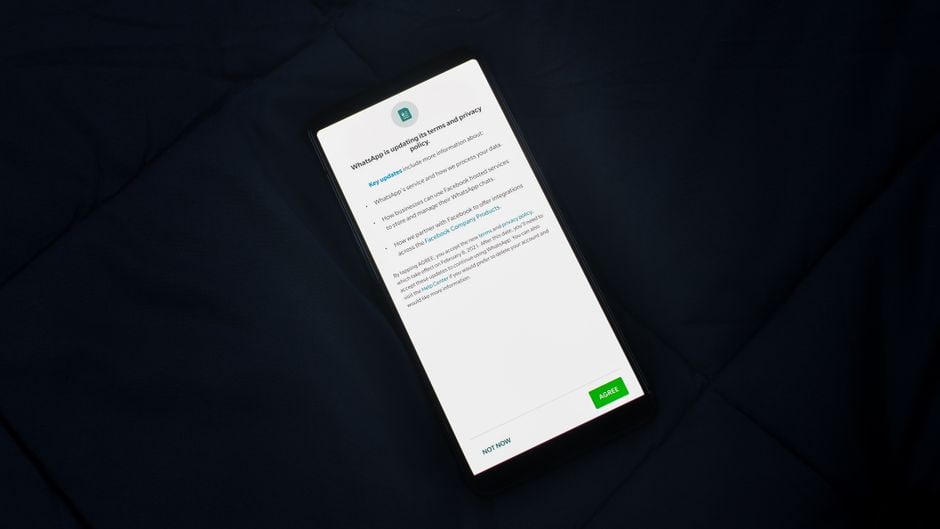
Essential Privacy Settings to Check Before Sharing
Here’s a practical rundown of key privacy settings to adjust on common family devices, helping you maintain privacy settings shared family devices need.
1. Create Separate User Profiles
This is arguably the most crucial step. Most operating systems (Windows, macOS, Android, iPadOS) allow for multiple user accounts, each with its own apps, settings, and files. This compartmentalizes data effectively.
- On Windows: Go to Settings > Accounts > Family & other users. You can add new users and designate them as standard users, which limits their ability to make system-wide changes.
- On Apple Devices (iPadOS/macOS): For iPads, you’ll need to use Guided Access or Screen Time to restrict specific apps, as full multi-user support isn’t available like it is on macOS. On a Mac, navigate to System Settings > Users & Groups to create new accounts.
- On Android: Open Settings > System > Multiple users. Here, you can add new users or a guest profile for temporary use, which is excellent for a quick hand-off.
2. Review and Restrict App Permissions
Many apps request access to your camera, microphone, location, contacts, and photos. While necessary for some apps to function, others might request permissions they don’t truly need. Review these critically.
Gamsgo Makes Streaming Subscriptions Simple and Budget-Friendly
- On Apple: Settings > Privacy & Security. You’ll find separate sections for Photos, Camera, Microphone, Location Services, and more. Go through each and disable access for apps that don’t absolutely require it.
- On Android: Settings > Apps > See all apps. Tap on an app, then Permissions, and adjust access for camera, microphone, location, etc.
- On Windows: Settings > Privacy & security > App permissions. This gives you granular control over what desktop and Microsoft Store apps can access.
3. Manage Location Services and Tracking
Your devices constantly know where they are, and often, so do the apps on them. Disabling location services for certain apps or even system-wide can significantly boost privacy.
- System-wide disabling: Available in Privacy & Security settings on all platforms.
- App-specific control: Always prefer ‘While Using the App’ over ‘Always’ for location access, and deny it entirely for apps that don’t need it (e.g., a calculator app doesn’t need your location).
4. Secure Browsing History and Saved Passwords
Browsing history can reveal a lot about a user’s interests, and saved passwords are a direct doorway to accounts. Always clear browsing data or, better yet, use guest profiles or private browsing modes.
- Private Browsing: Most browsers (Chrome Incognito, Safari Private Browsing, Firefox Private Window) offer modes that don’t save history, cookies, or site data.
- Password Managers: Use a dedicated password manager like 1Password or LastPass instead of letting the browser save passwords. These require a master password, keeping your credentials secure even if the device is shared.
5. Configure Parental Controls and Screen Time
For younger users, parental controls are essential for content filtering, purchase restrictions, and managing screen time. Apple’s Screen Time and Android’s Family Link are solid options.
- Apple Screen Time: Found in Settings. Allows you to set downtime, app limits, content & privacy restrictions (e.g., blocking explicit content, preventing in-app purchases). Use a Screen Time passcode distinct from the device passcode.
- Google Family Link: A separate app that gives parents control over Android devices and Chromebooks, including app approvals, screen time limits, and location tracking.
- Microsoft Family Safety: For Windows and Xbox, offering web filtering, app and game limits, and activity reports.
6. Enable Strong Passcodes and Biometrics
A simple PIN or swipe pattern isn’t enough. Ensure all devices have strong, unique passcodes. If available, enable biometric authentication (Face ID, Touch ID, fingerprint sensors).
- Regular Passcode: Six-digit or alphanumeric passcodes are far more secure than four-digit PINs.
- Biometrics: These offer convenience and a strong layer of security, but remember they can sometimes be bypassed under duress.
Comparing Privacy Options Across Platforms
While the principles are similar, the implementation of privacy settings varies between operating systems. Here’s a quick comparison:
| Feature | Apple (iOS/iPadOS/macOS) | Microsoft (Windows) | Google (Android) |
|---|---|---|---|
| Multi-user Support | Strong on macOS, Limited on iOS/iPadOS (use Screen Time/Guided Access) | Excellent, full separate profiles | Excellent, full separate profiles & Guest mode |
| Parental Controls | Screen Time (solid, device-native) | Microsoft Family Safety (solid, cross-device) | Google Family Link (solid, external app) |
| App Permissions | Granular, centralized under ‘Privacy & Security’ | Granular, centralized under ‘Privacy & security’ -> ‘App permissions’ | Granular, per-app control or centralized under ‘Privacy’ |
| Data Encryption | Standard on modern devices | BitLocker (Pro versions), Device encryption (Home versions) | Standard on modern devices |
In practice, Apple devices often emphasize privacy through strict app store guidelines and on-device processing for features like Face ID. Microsoft offers solid enterprise-level security features that trickle down to consumer devices, and Android provides unparalleled flexibility, which can be both a strength and a weakness depending on how it’s configured.

Common Mistakes to Avoid with Shared Devices
Even with the best intentions, it’s easy to overlook crucial aspects of device privacy. Here are some common pitfalls to avoid:
Not Using Strong, Unique Passcodes: A four-digit PIN that’s easy to guess (like a birth year) is hardly protection. Make passcodes long and complex. If using biometrics, ensure no one else has registered their fingerprint or face without your explicit consent.
How to Build a Quiet Desk Setup for Writing and Focus
Ignoring Software Updates: Operating system and app updates often include critical security patches. Delaying these updates leaves known vulnerabilities unaddressed, making your device and data susceptible to exploits. Staying current is fundamental to maintaining privacy settings shared family devices rely on.
Overlooking Default App Permissions: Many apps, upon installation, ask for broad permissions. It’s easy to click ‘Allow’ without thinking. Always review what an app is asking for and question if it’s truly necessary for its core function. A flashlight app doesn’t need access to your contacts or microphone, for example.
Not Educating Family Members: Privacy is a shared responsibility. Have open conversations with your family about the importance of digital privacy, safe browsing habits, and why certain restrictions are in place. This includes explaining the ‘why’ behind separate profiles or parental controls.
Assuming Incognito Mode is a Privacy Shield: While incognito or private browsing modes prevent your local browsing history from being saved, they do not hide your activity from your internet service provider, employer, or the websites you visit. For true anonymity, you’d need a VPN.
Frequently Asked Questions About Family Device Privacy
How does Wi-Fi 7 impact family device privacy?
Wi-Fi 7, while faster and more efficient, doesn’t inherently change device privacy settings. It improves network security protocols but device-level privacy (like app permissions or user profiles) remains paramount. Your Wi-Fi network’s security (WPA3 is recommended) is separate from what your devices do with your data.
Can I fully secure an Apple device for a child?
Yes, Apple’s Screen Time offers solid controls to secure an iPhone or iPad for a child. You can restrict content, prevent purchases, limit app usage, and even control communication. Using a unique Screen Time passcode ensures these settings can’t be easily changed by the child.
What’s the best way to handle privacy on a shared Microsoft Windows PC?
For a shared Windows PC, creating separate user accounts for each family member is the gold standard. Designate most users as ‘Standard Users’ rather than ‘Administrators’ to prevent system-wide changes. Combine this with Microsoft Family Safety for parental controls and regular Windows Defender scans.
Should I worry about smart devices on my network affecting privacy?
Absolutely. Smart devices (speakers, cameras, TVs) can collect vast amounts of data. Always review their privacy policies, disable features you don’t use (like voice assistants always listening), and consider isolating them on a separate guest Wi-Fi network if your router supports it, especially for devices from less reputable brands.
How often should I review privacy settings on shared family devices?
It’s a good practice to review privacy settings at least quarterly, or whenever there’s a major operating system update, a new app is installed, or a new family member starts using the device. Settings can sometimes reset or new options might become available that you’ll want to configure.
Implementing these essential privacy settings to check before sharing family devices might seem like a chore, but it’s an investment in your family’s digital safety and peace of mind. Taking these proactive steps ensures that convenience doesn’t come at the cost of personal data security, a vital consideration for every connected home, whether you’re in Canada, Brazil, or France. Read more practical technology guides on Vie En Mots.